AI is no longer just for tech experts. Today, anyone can create their own AI assistant for free. You can use it to help with writing, studying, marketing, planning, and many other daily tasks. Instead of typing the same instructions again and again, you can build an AI that already understands what you want.
With Google Gemini’s “Gems” feature, you can create a personal AI chatbot without any coding. This guide will show you how to do it step by step in a simple way.
Step-by-Step Guide to Create Your Custom AI
Follow these easy steps to build your own AI using Google Gemini.
Step 1: Open Google Gemini
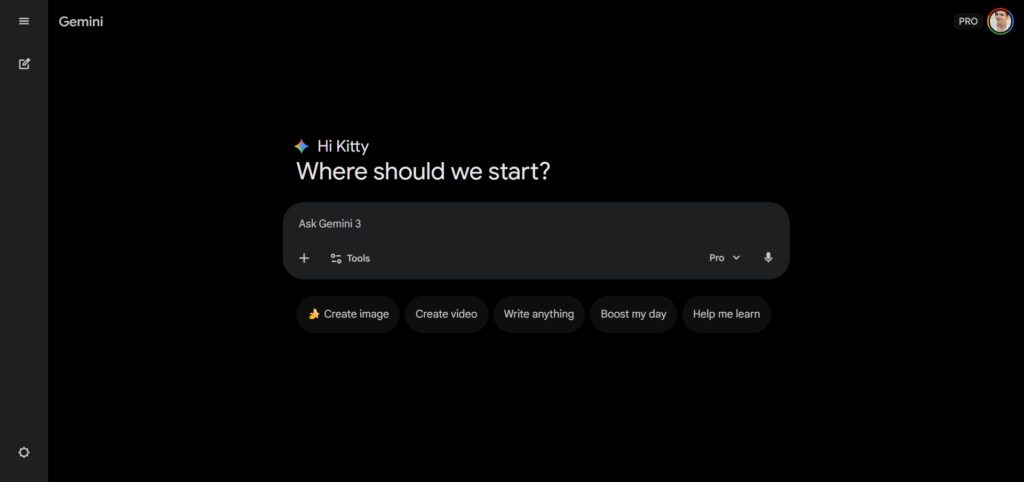
First, open your browser and go to: https://gemini.google.com
Log in with your Google account. If you don’t have one, create it first.
Step 2: Find the “Gems” Menu
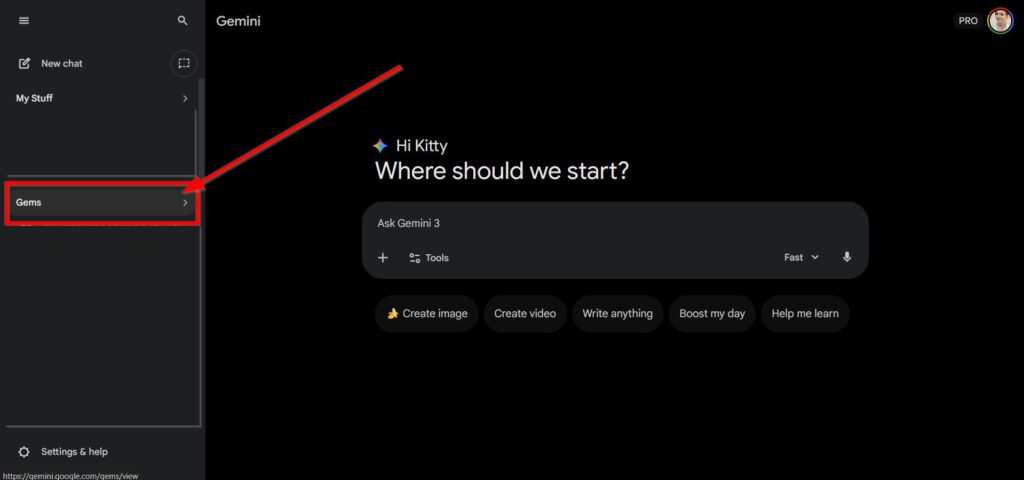
After opening Gemini, look at the left side of the screen. You will see a menu. Scroll down and find “Gems.”
Click on it to open the Gem Manager.
Step 3: Create a New Gem
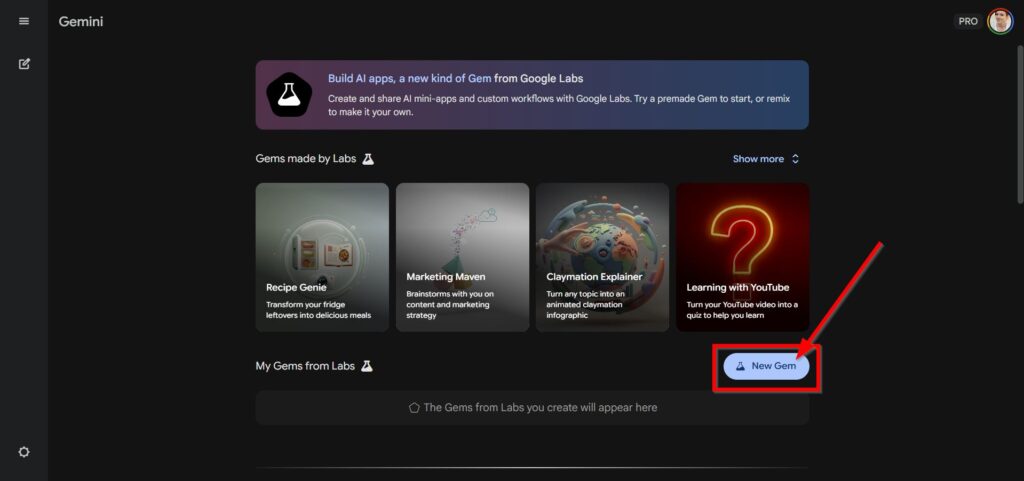
Inside the Gems section, click on “+ New Gem” or “Create New.”
This is where you will start building your own AI assistant.
Step 4: Name and Describe Your AI
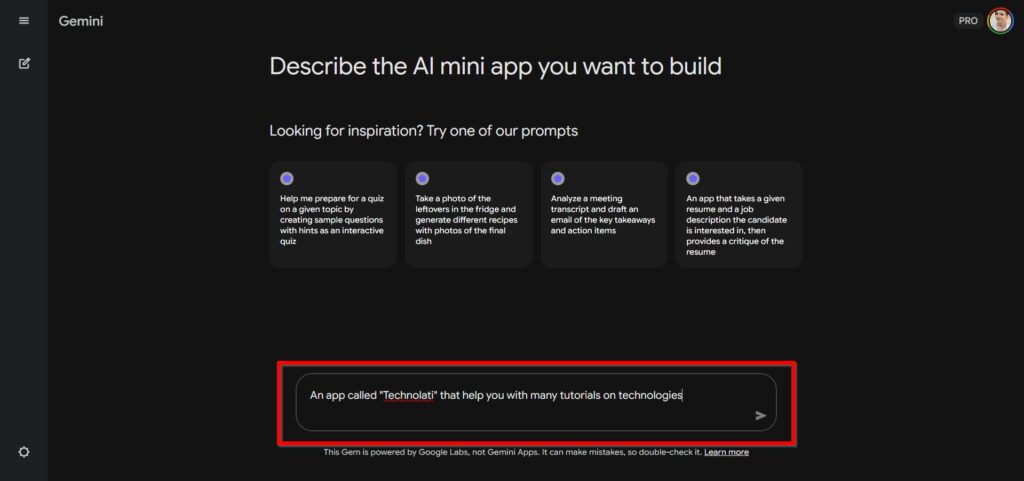
Now, give your AI a name and description.
For example:
- Name: Study Helper
- Description: Helps me summarize notes and explain topics simply.
Choose something that matches what you want your AI to do.
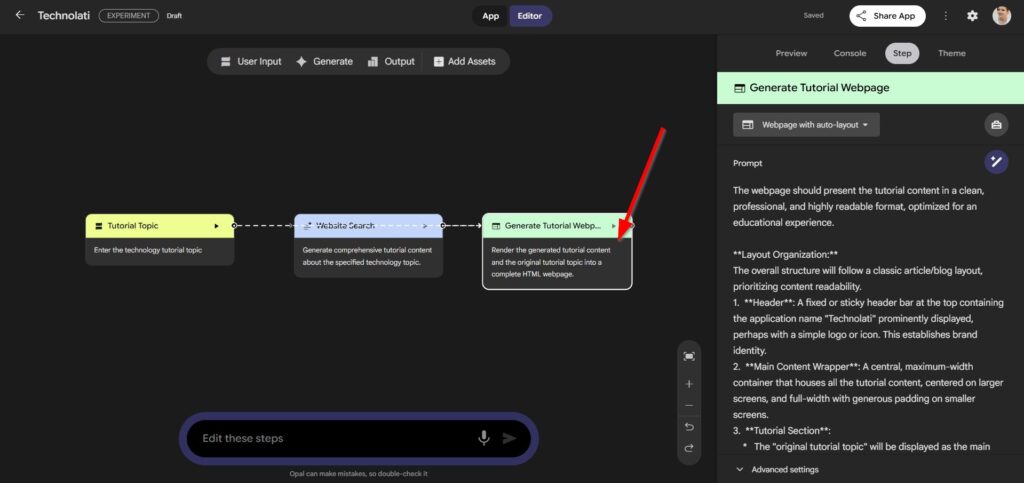
Step 5: Write Simple Instructions
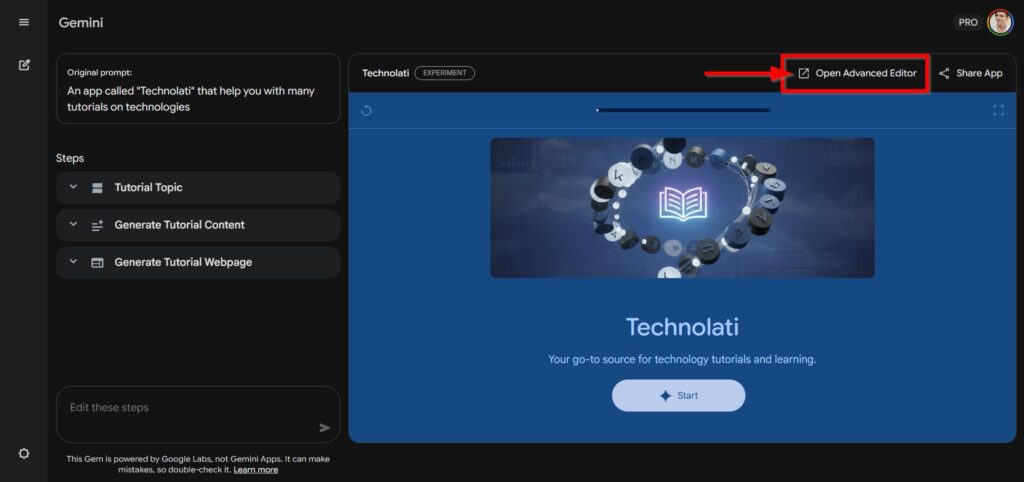
This part is very important. Here, you tell your AI how to work.
Use this simple format:
Role
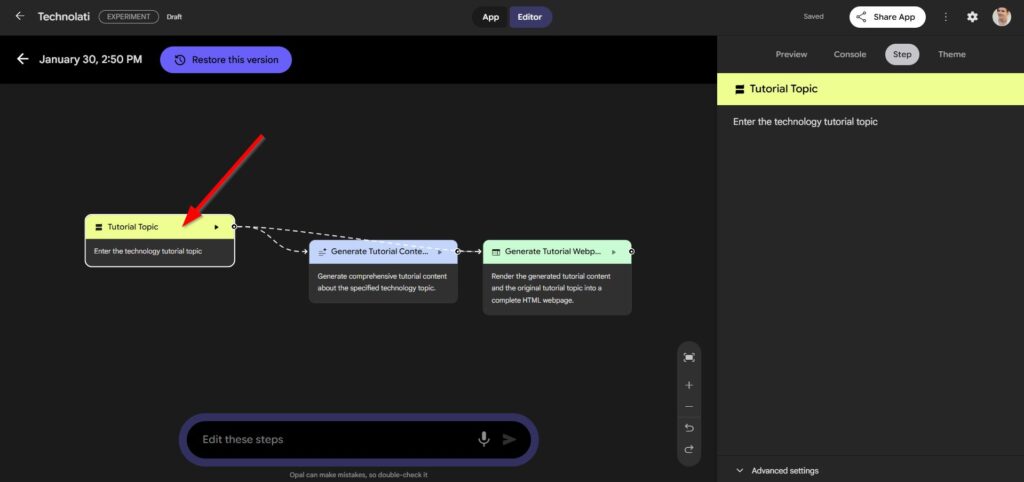
Tell the AI who it is.
Example: You are a professional content writer.
Task
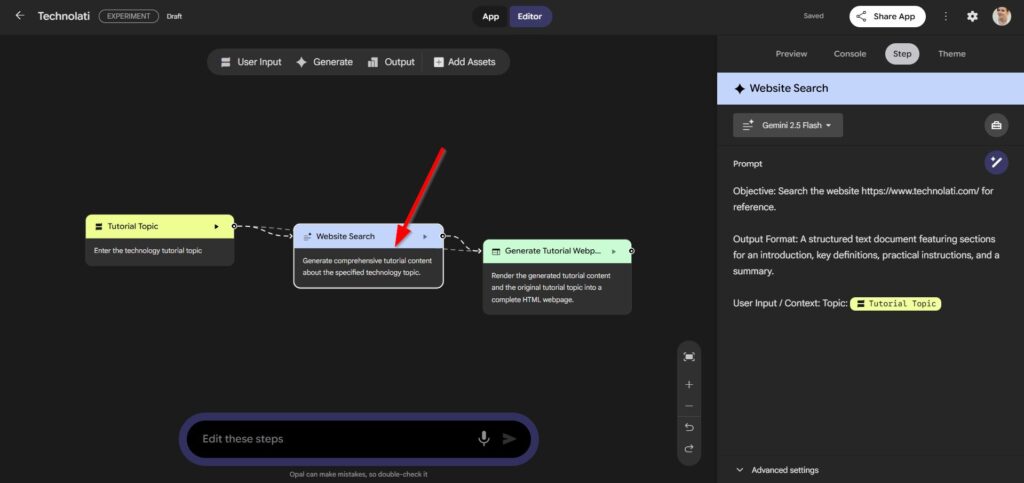
Explain what it should do.
Example: Help me write blog posts and captions.
Tone
Decide how it should talk.
Example: Friendly and easy to understand.
Example instructions:
Role: You are an experienced digital marketer.
Task: Help me create social media content and ads.
Tone: Casual, clear, and helpful.
You can change this based on your needs, such as studying, coding, business, or writing.
Step 6: Test and Improve
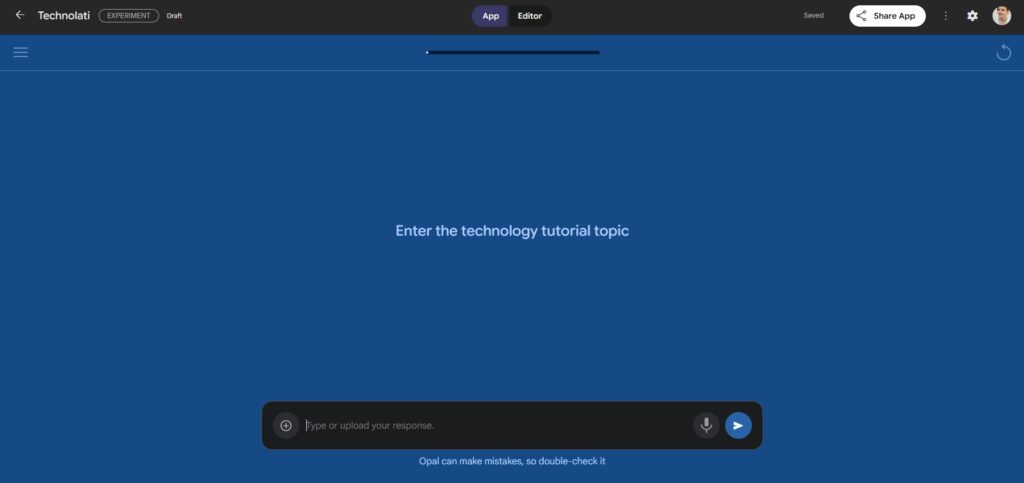
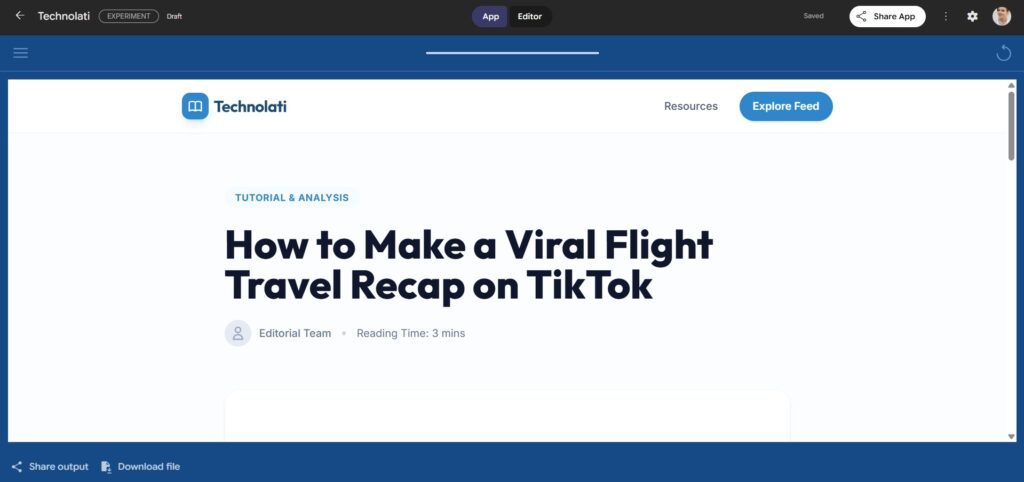
After writing the instructions, try using your AI in the preview section.
Ask it a few questions. If the answers are not good, edit the instructions and try again. This helps make your AI better.
Step 7: Save Your AI
When you are happy with the result, click “Save.”
Your custom AI is now ready. You can use it anytime from the Gems menu.
Making your own AI assistant is easy and free with Google Gemini Gems. You don’t need special skills—just clear instructions and a little practice.
With your own custom AI, you can work faster, save time, and make daily tasks easier. Try it today and see how useful your personal AI helper can be.
- Gridline: A Free Bloomberg Alternative for OSINT
Gridline is a self-hosted risk dashboard for traders, analysts, and OSINT work. It pulls conflict, finance, and news signals into..
- Nvidia Build Their Own Version of Openclaw
Nvidia is quietly preparing to launch a major new platform for AI agents, and it could change how businesses use..
- Facebook Acquire Moltbook, AI-Only Social Platform
Meta, the company behind Facebook and Instagram, has made a move that sounds like something straight out of a science..
- Top 5 OpenClaw AI Agent Alternatives You Can Deploy for Free
Openclaw has been getting a lot of attention lately, but nearly half a million lines of code and 70-plus dependencies..
- How to Install OpenClaw on a Local VPS Without Subscription Fees
If you want your own private AI assistant running on your own server, not on someone else’s platform, OpenClaw might..
- How to Make AI Song for Free
Have you ever wanted to create your own music but felt that it was too hard, too expensive, or required..