
If your iPhone 16 is running out of storage even though you have deleted photos, videos, and apps, the problem may be System Data. This part of storage contains temporary files, app caches, system logs, and background data that help iOS work properly. Over time, these files can grow too large and stop cleaning themselves automatically.
When this happens, your phone may feel slower, fail to update, or show “Storage Almost Full” warnings. The good news is that you do not need special skills to fix this. In this guide, you will learn simple and safe ways to reduce System Data on your iPhone 16.
Step-by-Step Instructions to Clear System Data on iPhone 16
Before starting, check how much space System Data is using:
Go to Settings > General > iPhone Storage > Scroll down and look for System Data
If it is using more than 20GB, it is worth cleaning.
#1 Clear Safari Cache
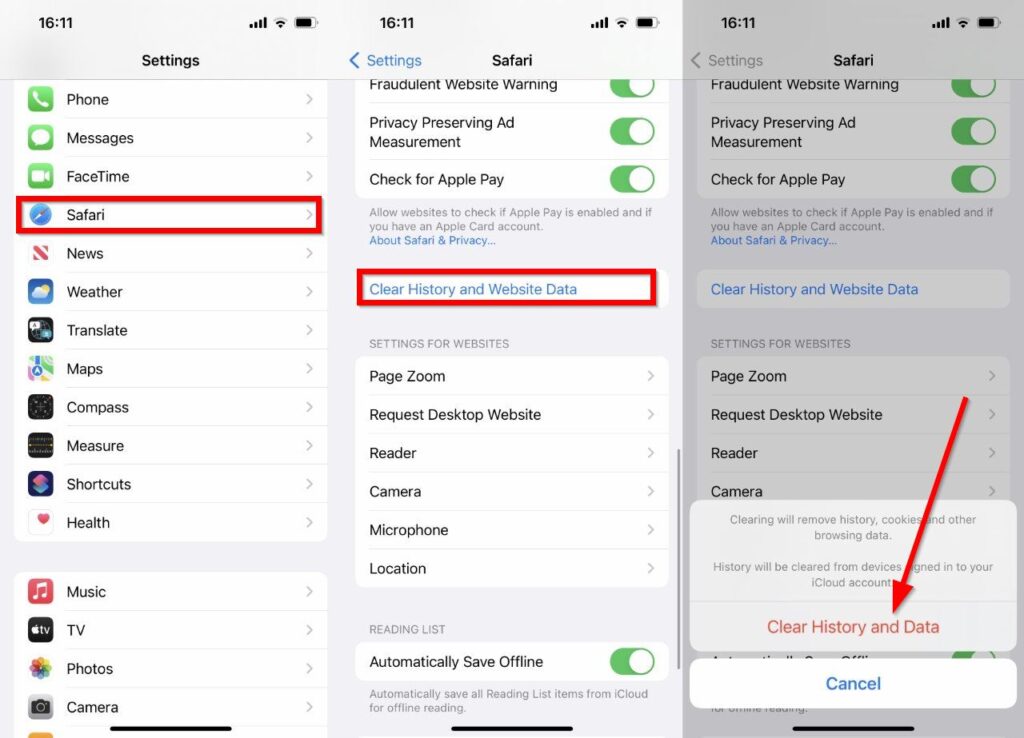
Safari stores website data that can slowly take up space.
- Open Settings
- Go to Apps > Safari
- Tap Clear History and Website Data
- Confirm when asked
This removes browsing cache and temporary files.
#2 Offload or Reinstall Large Apps
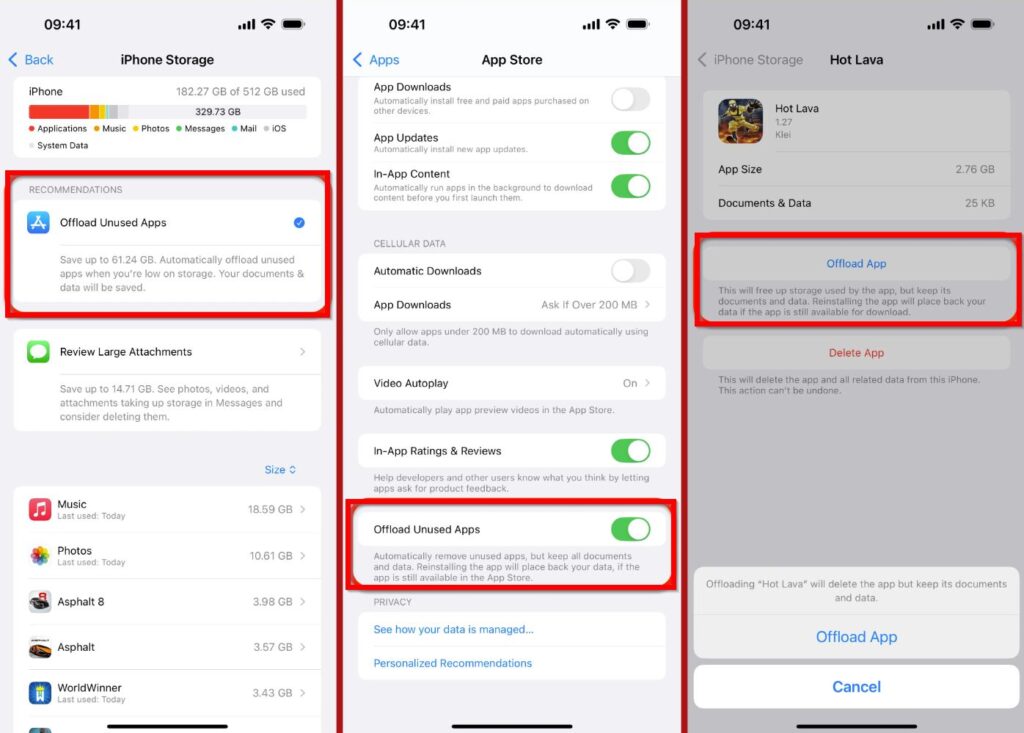
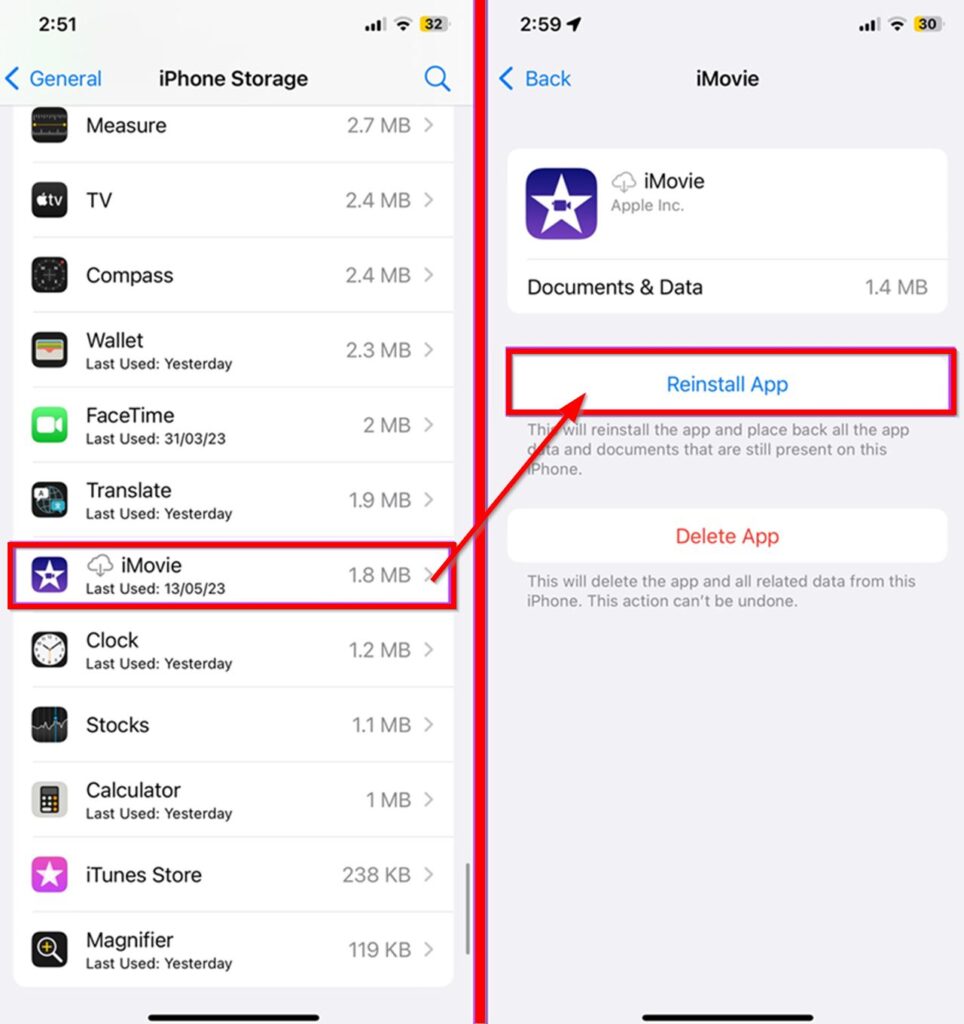
Some apps store hidden cache that adds to System Data.
- Open Settings > General > iPhone Storage
- Wait for the app list to load
- Select an app using a lot of space
- Tap Offload App or Delete App
- Reinstall later if needed
Popular apps like Instagram, TikTok, and Discord often benefit from this step.
#3 Use the “Date Trick” to Trigger System Cleanup
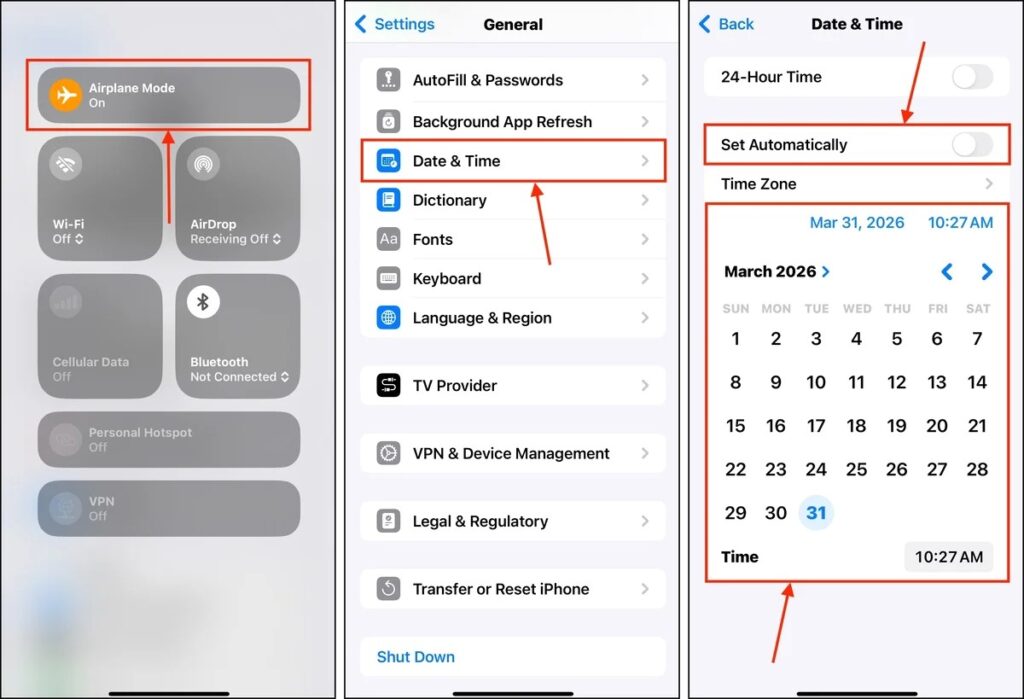
This method helps iOS clean system cache automatically. But first, protect your messages:
Go to Settings > Messages > Keep Messages > Forever
Then follow these steps carefully:
- Close all open apps
- Turn on Airplane Mode
- Turn off Wi-Fi and Bluetooth
- Go to Settings > General > Date & Time
- Turn off Set Automatically
- Set the date to 1 year in the future
- Wait 60 seconds (keep screen awake)
- Check iPhone Storage
- Change the date to 3 months in the future
- Wait another 60 seconds
- Turn Set Automatically back on
- Turn off Airplane Mode
This forces iOS to remove old cache files.
#4 Force Restart Your iPhone
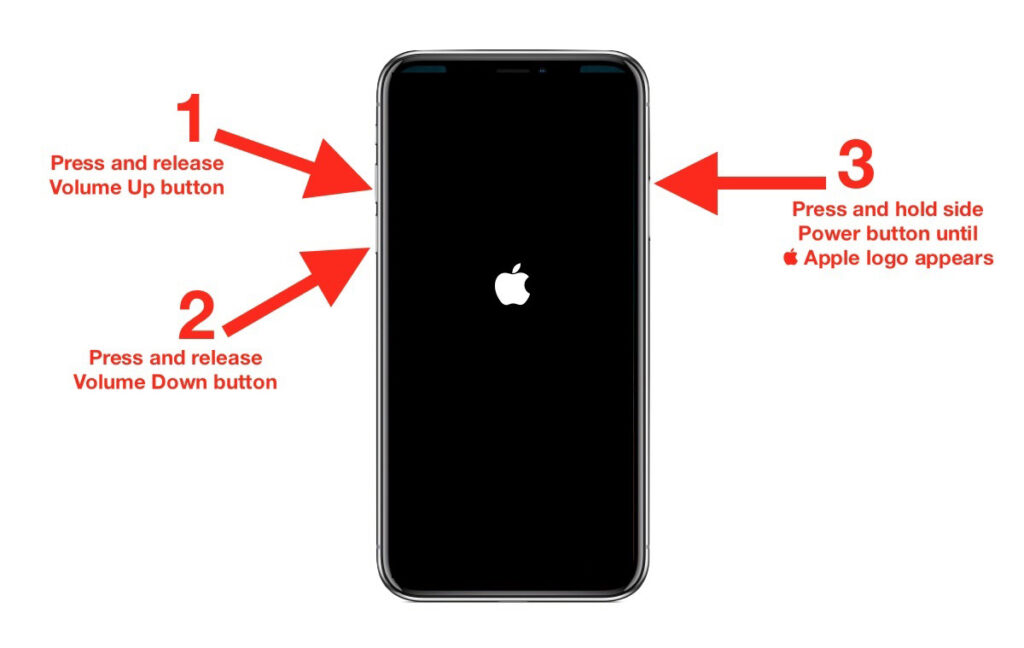
A force restart clears temporary system memory.
- Press and release Volume Up
- Press and release Volume Down
- Hold the Side Button
- Release when Apple logo appears
This can fix small glitches and free minor cache.
#5 Delete Old Messages and Attachments
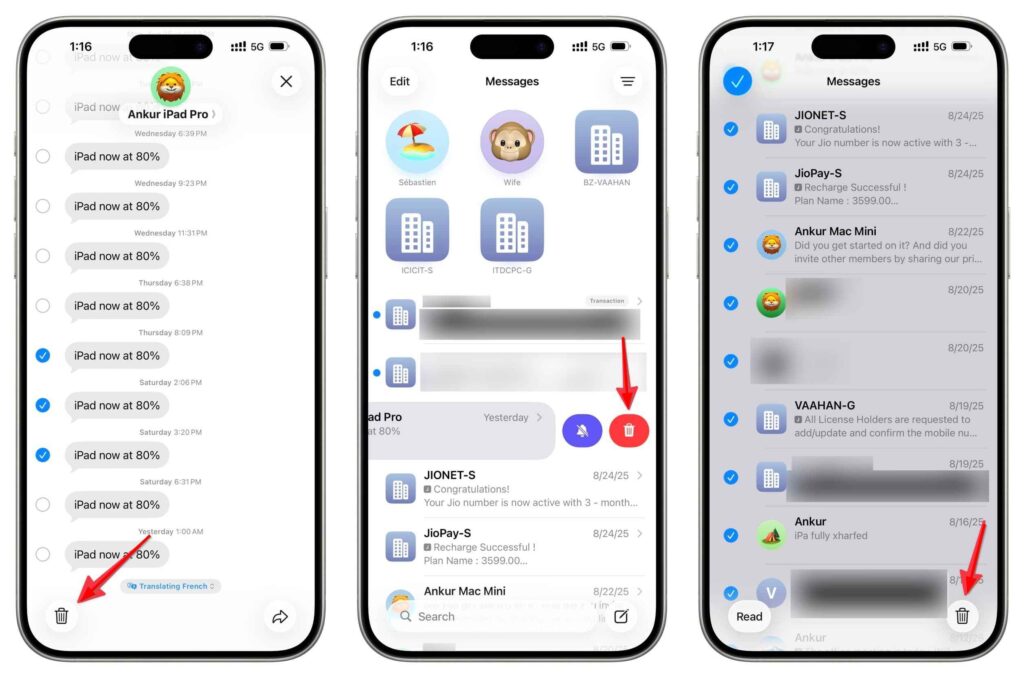
Photos and videos in Messages take up hidden storage.
- Open the Messages app
- Delete old conversations
- Or go to Settings > Messages > Keep Messages
- Choose 30 Days or 1 Year
This helps reduce background storage use.
#6 Factory Reset and Restore (Best for Serious Problems)
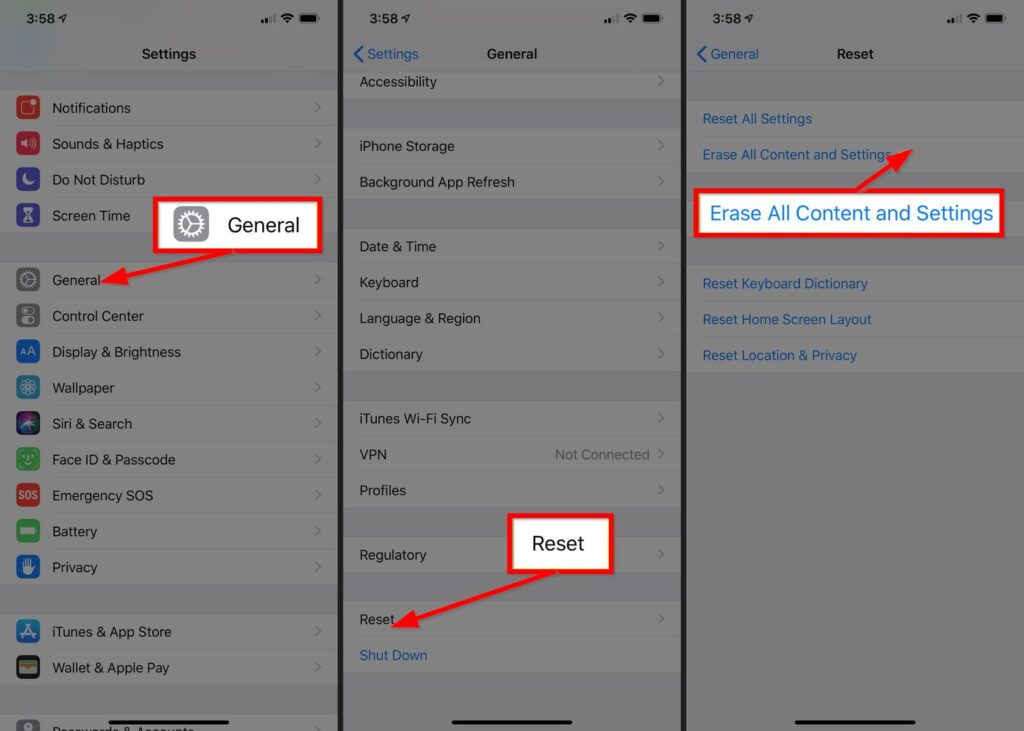
If System Data is still very large, this is the most powerful solution.
First, back up your iPhone to iCloud or a computer.
Then:
- Go to Settings > General > Transfer or Reset iPhone
- Tap Erase All Content and Settings
- Follow the instructions
- Restore your backup during setup
This refreshes system files completely.
System Data helps your iPhone work smoothly, but when it grows too large, it can cause storage and performance problems. Luckily, you can manage it using simple methods like clearing Safari cache, offloading apps, using the date trick, and restarting your phone.
Start with the easiest steps and only move to factory reset if nothing else works. You do not need to clean System Data often—only when it becomes unusually large. By following this guide, you can free up space, improve performance, and keep your iPhone 16 running well without unnecessary stress.