
Have you ever taken a photo that looked good at first, but when you zoomed in, it appeared blurry and full of tiny dots? This problem is called grain or noise, and it usually happens when photos are taken in low light, at night, or with high camera settings. Grain can make faces look soft and details unclear.
The good news is that you don’t need to be a professional editor to fix this. With today’s simple tools and websites, anyone can improve grainy photos in just a few minutes. This guide will show you easy ways to make your pictures clearer and sharper.
Step-by-Step Instructions to Fix Grainy Photos
Before you begin, choose the method that suits you best:
- Use Topaz Photo AI for the best quality.
- Use Lightroom if you already have Adobe software.
- Use Designify for fast and free online editing.
#1 Fix Grain with Topaz Photo AI
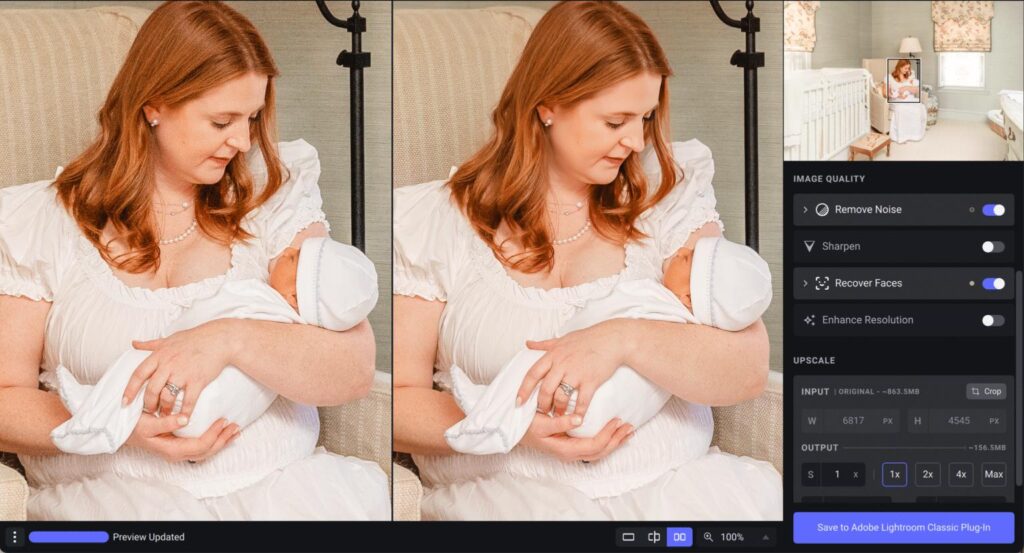
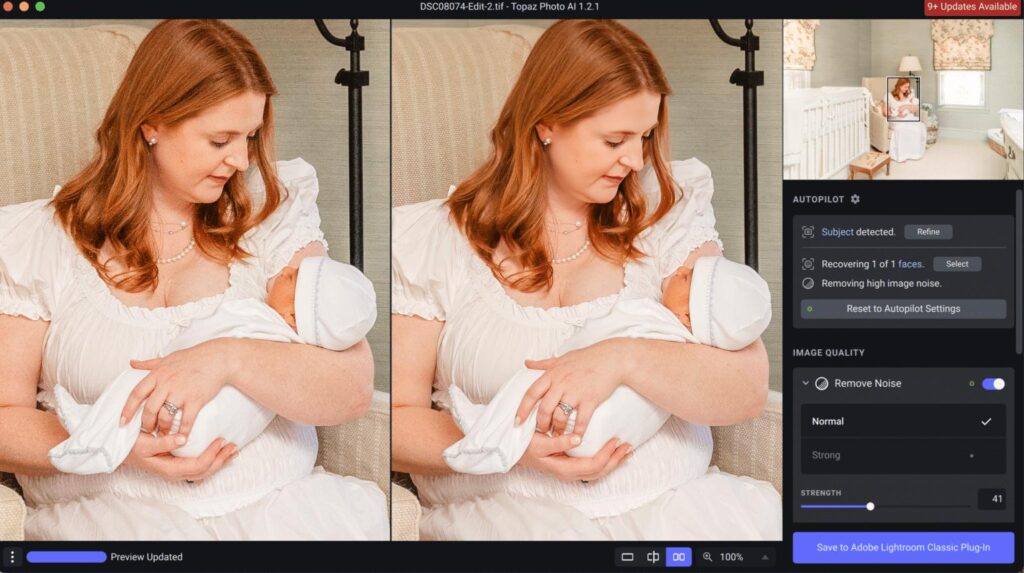
Topaz Photo AI is a powerful tool designed to remove noise and improve sharpness. It works very well for portraits and low-light photos.
Steps:
- Download and install Topaz Photo AI
- Open your photo in Lightroom (optional)
- Click File > Plugin Extras > Process with Topaz Photo AI
- Choose Edit a Copy
- Wait for the Topaz window to open
- Select Remove Noise
- Choose Normal mode
- Adjust the strength carefully
- Preview the result
- Save and export your photo
Tip: Avoid using very strong settings, or the photo may look unnatural.
Website:
https://www.topazlabs.com/topaz-photo-ai
#2 Reduce Grain Using Lightroom
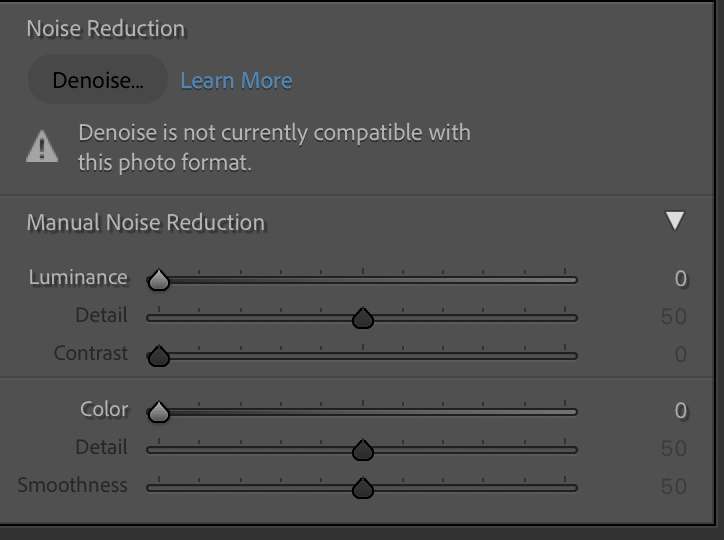
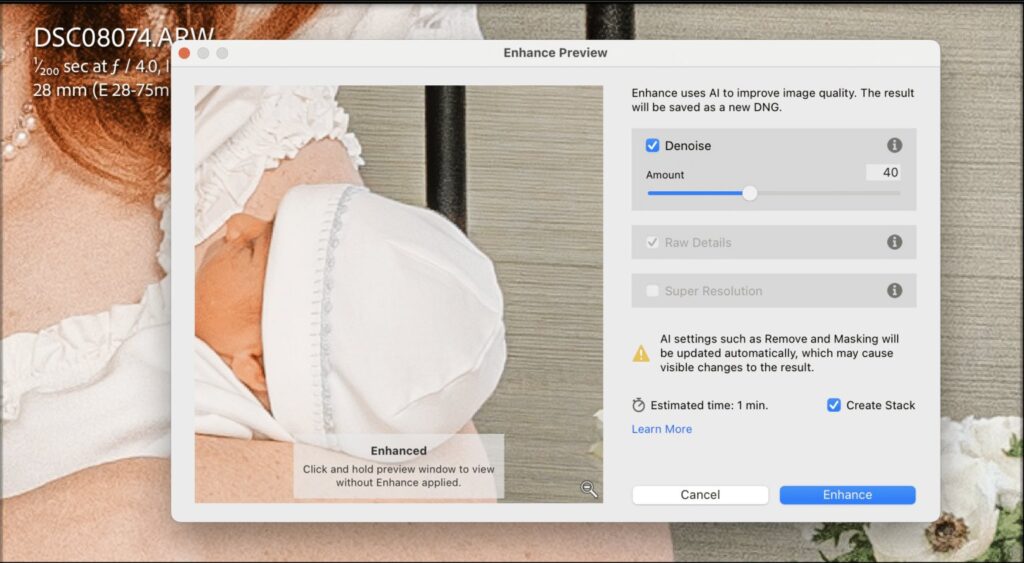
If you already use Adobe Lightroom, you can remove noise directly inside the program.
Steps:
- Open Lightroom
- Import your photo
- Go to the Develop tab
- Find the Detail panel
- Adjust the Luminance slider
- Or click Denoise AI
- Preview the changes
- Export your image
Important: Apply Denoise before editing in Photoshop for best results.
Website:
https://www.adobe.com/products/photoshop-lightroom.html
#3 Fix Grainy Photos Online with Designify
Designify is a free online tool that works on computers and phones. It is perfect when you need fast results.
Steps:

- Open the Designify website
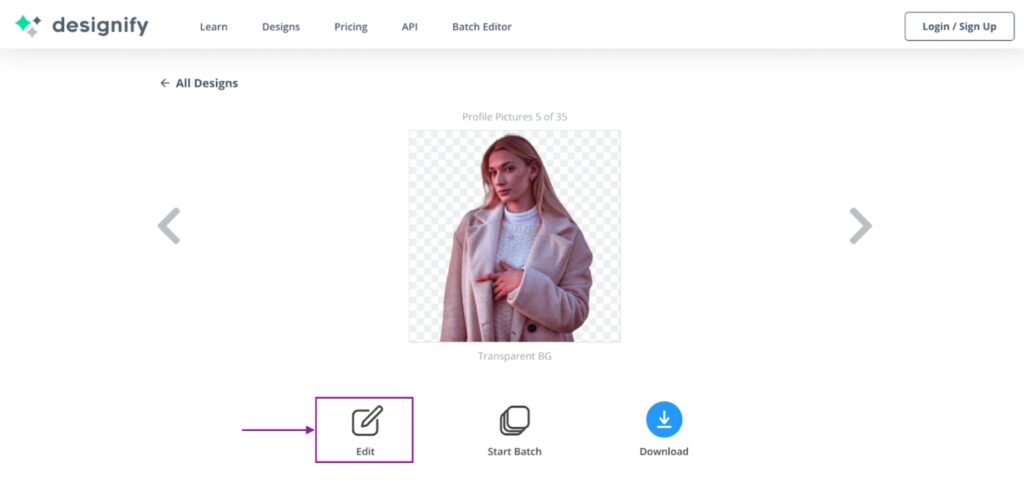
- Upload your photo
- Click Edit
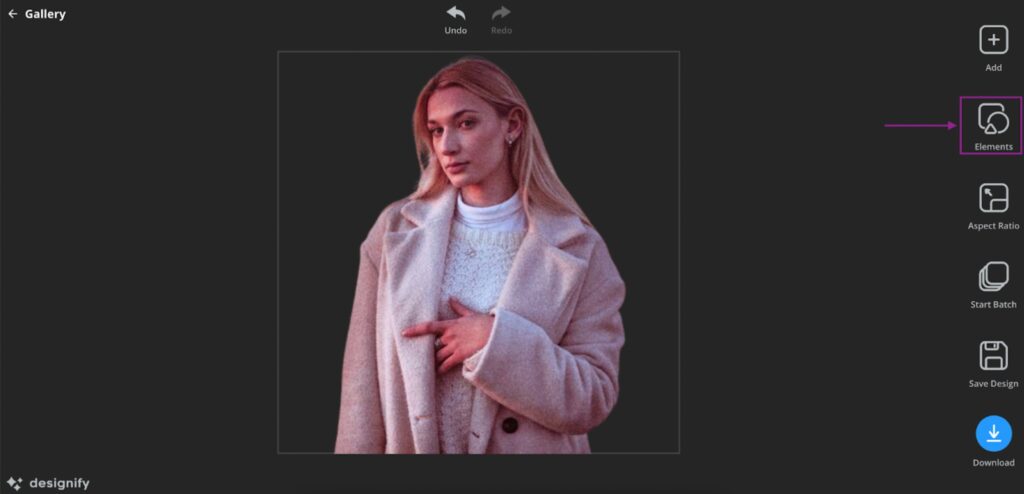
- Select Elements
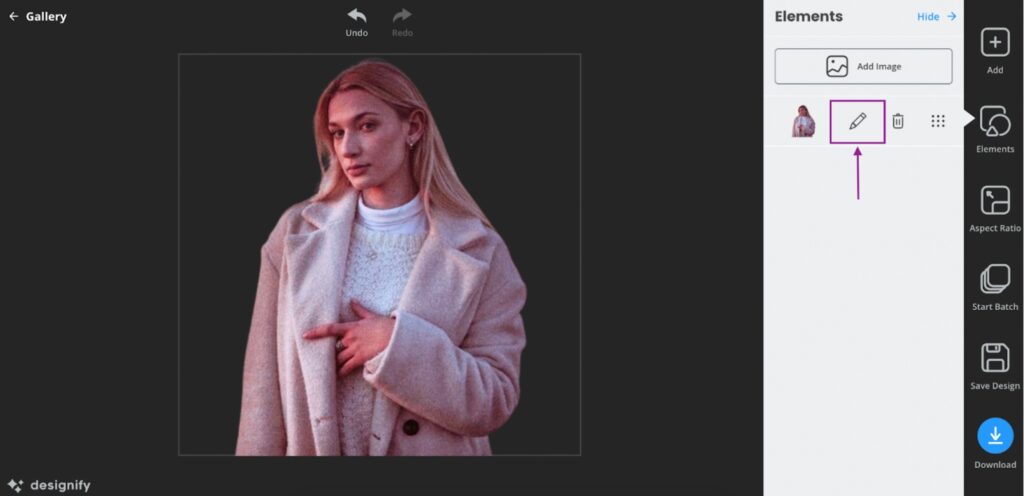
- Click the Pencil icon
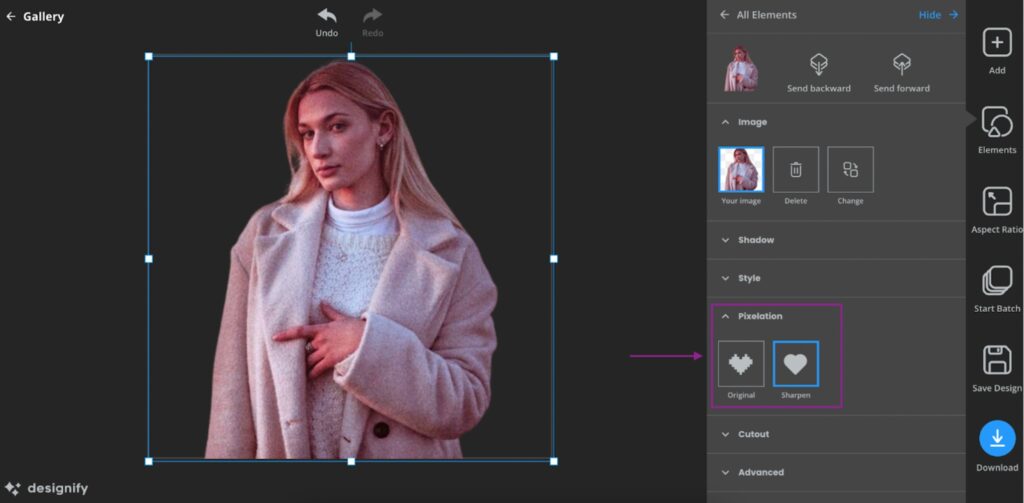
- Under Pixelation, choose Sharpen
- Click Download
Website:
https://www.designify.com
Grainy photos are common, especially when shooting in low light, but they don’t have to ruin your pictures. With tools like Topaz Photo AI, Lightroom, and Designify, you can easily remove noise and bring back clarity.
Start with gentle adjustments and avoid over-editing. Choose the tool that fits your needs and comfort level. With a little practice, you can turn blurry, grainy photos into clear images that look great for sharing, printing, and saving as lasting memories.