
One of the most powerful features of OpenClaw is its ability to connect with different AI model providers. Instead of being tied to a single platform, OpenClaw allows users to integrate cloud models, local models, and third-party AI services in one automation gateway.
Whether you want to run advanced models from OpenAI, experiment with local inference through Ollama, or connect enterprise-grade models like Claude, OpenClaw provides flexible configuration options. Below are three common ways to integrate AI models into your OpenClaw environment.
1. Connect OpenClaw to OpenAI Models
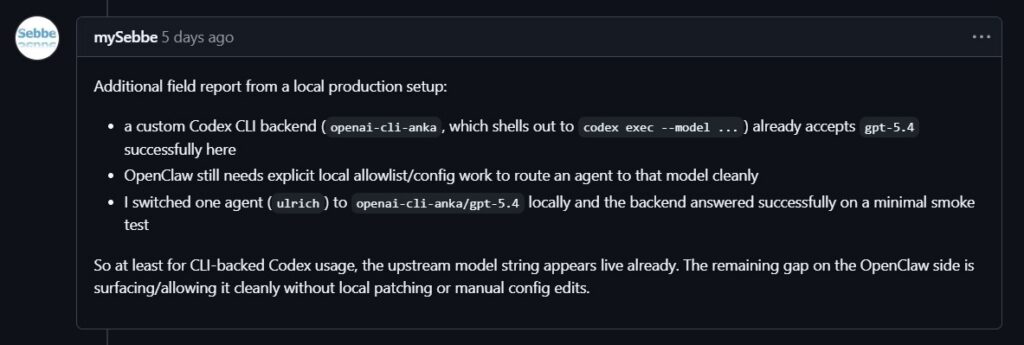
OpenClaw supports direct integration with models from OpenAI, allowing users to access advanced reasoning and text generation features.
Option 1: OpenAI API Key (Recommended)
The most common method is using an API key from the OpenAI Platform, which works on a pay-as-you-go billing model. You can set it up quickly using the onboarding wizard:
openclaw onboard –auth-choice openai-api-key
For automated setups, run:
openclaw onboard –openai-api-key “$OPENAI_API_KEY”
You can also define the key manually in the openclaw.json configuration file and set a default model such as openai/gpt-5.4. OpenClaw supports API key rotation, meaning you can provide multiple keys using OPENAI_API_KEYS or numbered variables like OPENAI_API_KEY_1. This helps avoid interruptions if rate limits are reached.
Option 2: OpenAI Code (Codex) Subscription
If you have a subscription, you can authenticate using OAuth instead of an API key:
openclaw onboard –auth-choice openai-codex
or
openclaw models auth login –provider openai-codex
Models accessed this way use the openai-codex/ prefix.
Advanced Settings
OpenClaw automatically streams responses using WebSockets for faster replies and falls back to Server-Sent Events if needed. Eligible accounts can also enable priority processing to reduce latency, while server-side context compaction helps manage long conversations efficiently.

2. Run Local Models with Ollama
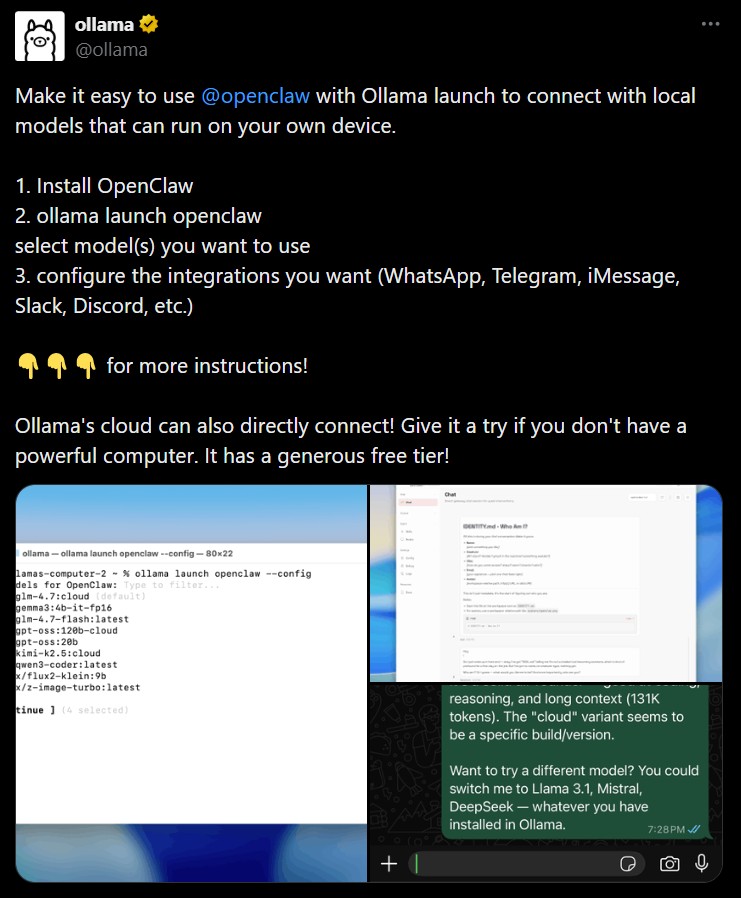
For users who prefer running AI locally, OpenClaw integrates smoothly with Ollama. This setup allows you to run language models directly on your own hardware instead of relying on cloud APIs.
Quick Start with Auto-Discovery
After installing Ollama, pull a model using the CLI. When the Ollama service is running, OpenClaw can automatically detect available models.
By default, OpenClaw checks the local endpoint:
http://127.0.0.1:11434
It scans the available models and keeps only those that support tool-calling, which allows the AI agent to interact with system tools and automation workflows.
You can view detected models with:
openclaw models list
OpenClaw also reads key capabilities such as context window size and whether the model supports reasoning features.
Explicit Configuration
If your Ollama instance runs on another host or port, you can manually configure it in the openclaw.json file. This is also useful if you want to run models without built-in tool support or set custom context limits and token parameters.
Troubleshooting and Security
If OpenClaw cannot detect Ollama, ensure the service is running with ollama serve and test connectivity using a simple API request.
Keep in mind that smaller or heavily compressed models may be more vulnerable to prompt-injection attacks. If your agent can access sensitive tools such as the file system or shell commands, use the largest model your hardware can support and enable sandboxing.
3. Configure Anthropic Claude in OpenClaw
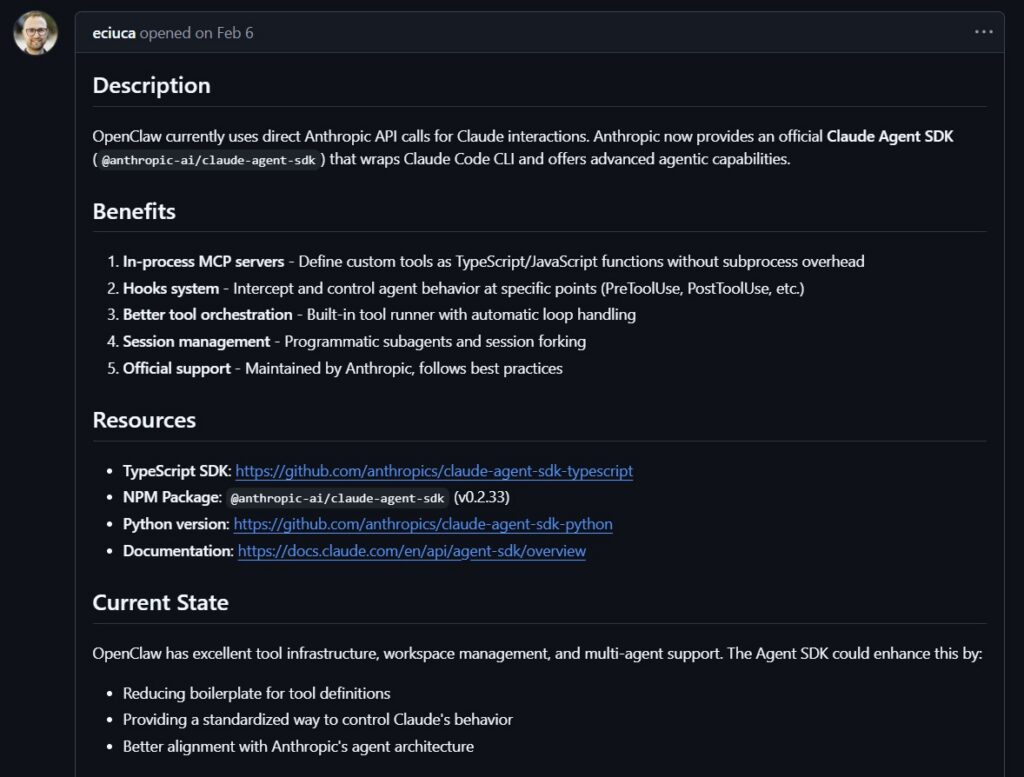
OpenClaw also integrates with AI models from Anthropic, including the Claude series.
Option 1: Anthropic API Key (Recommended)
The most common method is connecting with an API key from the Anthropic Console. During onboarding, choose the Anthropic authentication option or run:
openclaw onboard –anthropic-api-key “$ANTHROPIC_API_KEY”
You can also configure it manually by defining the API key and default model in the openclaw.json file, for example using anthropic/claude-opus-4-6. This method follows a usage-based billing model similar to most cloud AI APIs.
Option 2: Claude Setup Token
Users with a Claude Code CLI subscription can authenticate using a setup token generated from the CLI. After generating the token, provide it to OpenClaw with:
openclaw models auth setup-token –provider anthropic
Because this approach depends on the provider’s subscription policies, users should confirm that external tool access is currently permitted.
Advanced Claude Settings
OpenClaw includes several advanced configuration options for Claude models. These include prompt caching, which stores repeated prompts for a short period to reduce token costs.
Some Claude models also support extended context windows of up to one million tokens in beta environments. In addition, OpenClaw enables adaptive reasoning modes, allowing newer Claude models to automatically adjust their thinking depth depending on the complexity of each task.
With these integrations, OpenClaw becomes a flexible AI hub capable of connecting cloud models, local models, and advanced research-grade AI systems in a single automation workflow.
- OpenClaw Installation Guide
Installing OpenClaw is fairly straightforward whether you’re using Linux or running it on Windows through a compatibility layer. OpenClaw acts..
- OpenClaw Memory and Skills System
Modern AI assistants become far more useful when they can remember information and perform repeatable tasks. That’s exactly what the..