
Do you often open your Gmail and feel frustrated by unwanted emails, ads, fake offers, or strange messages? These spam emails can quickly fill your inbox and make it hard to find important messages from friends, family, or work. Many people think this is something they just have to accept, but that is not true.
Gmail has simple built-in tools that help you block senders, filter unwanted messages, and organize your inbox. You don’t need any technical knowledge to use them. With a few easy steps, you can reduce spam and enjoy a cleaner, calmer inbox.
Step-by-Step Instructions to Stop Spam Emails on Gmail
For best results, use Gmail on a computer.
Open Gmail here: https://mail.google.com
Sign in to your account before starting.
#1 Block a Sender
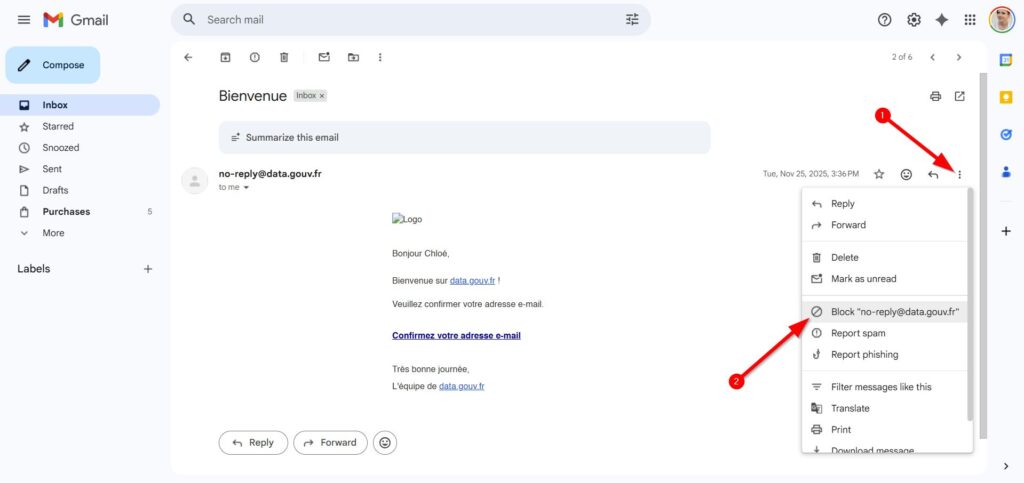
Blocking is the fastest way to stop emails from one person or company.
Steps:
- Open Gmail on your computer
- Open the spam email
- Click the three dots (More) in the top-right corner
- Select Block “Sender”
- Click Block to confirm
After this, future emails from this sender will go directly to Spam.
#2 Create Filters to Handle Spam Automatically
Filters allow Gmail to manage certain emails for you.
Steps:
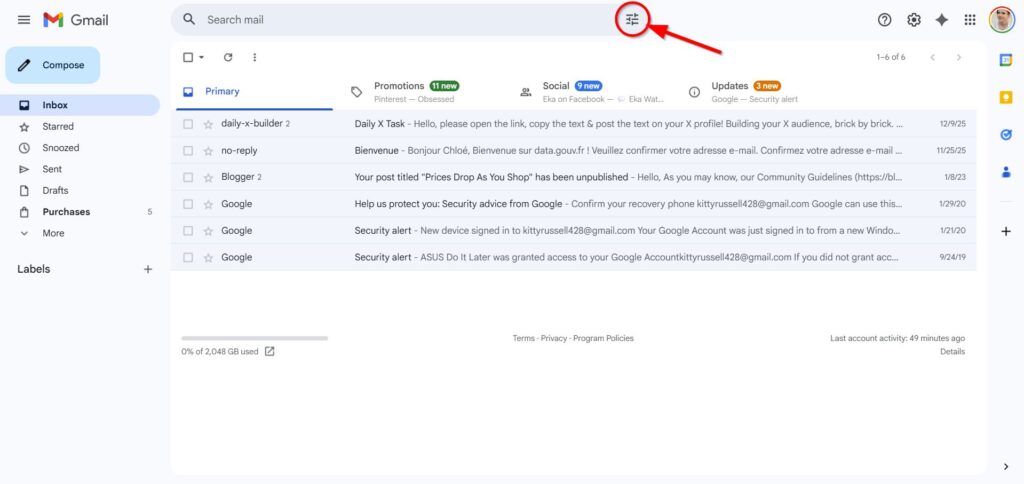
- Open Gmail
- Click the search bar at the top
- Click the filter icon
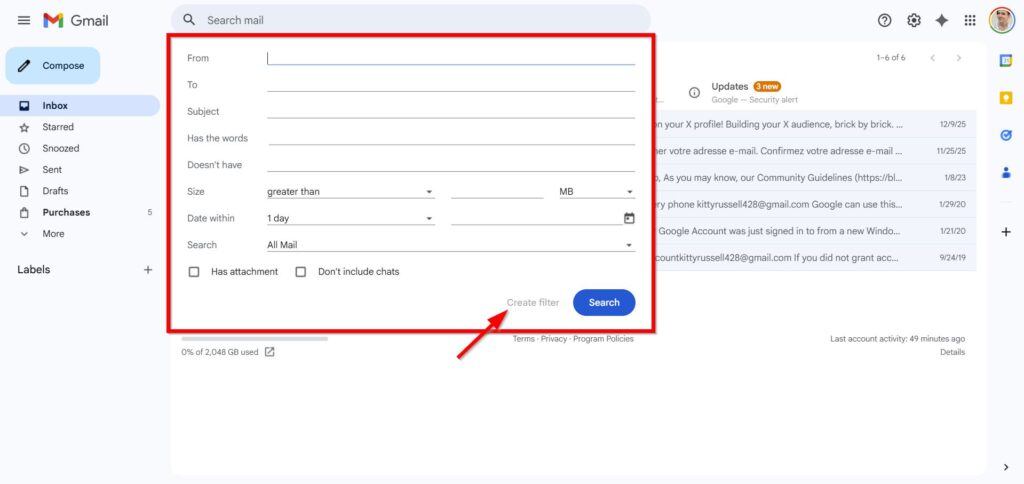
- Enter details such as sender, subject, or keywords
- Click Create filter
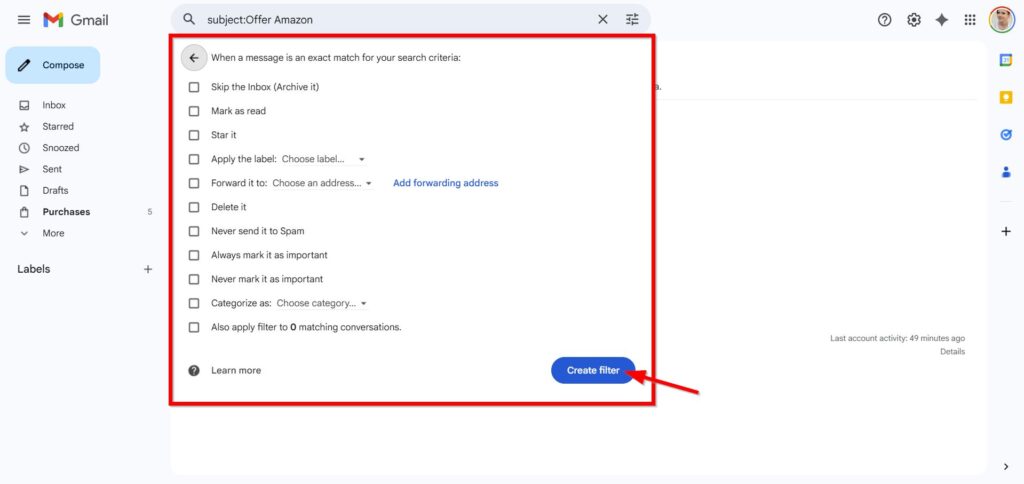
- Choose what Gmail should do:
- Delete
- Archive
- Mark as spam
- Move to a label
- Click Create filter
From now on, Gmail will apply this rule automatically.
#3 Create a Filter from an Existing Email
This is a quick way to make a filter.
Steps:
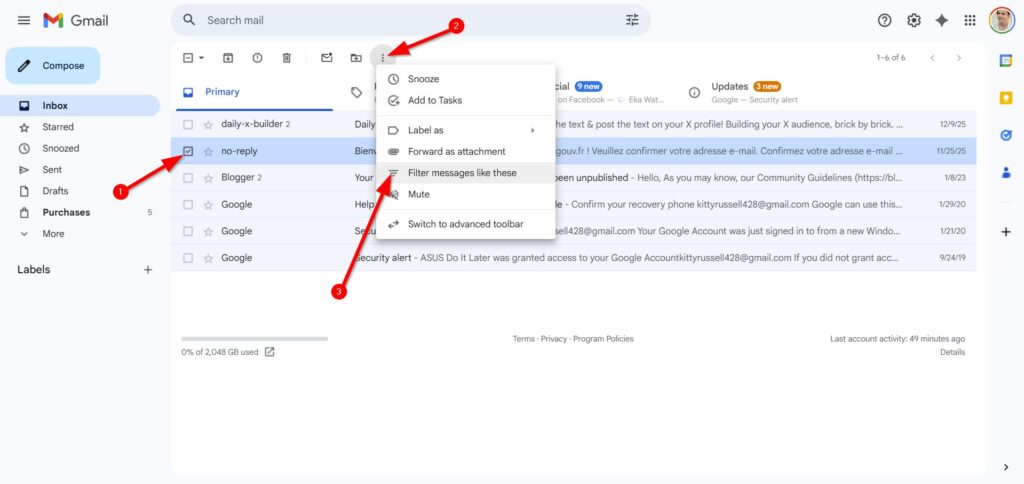
- Open Gmail
- Check the box next to a spam email
- Click More (three dots)
- Select Filter messages like these
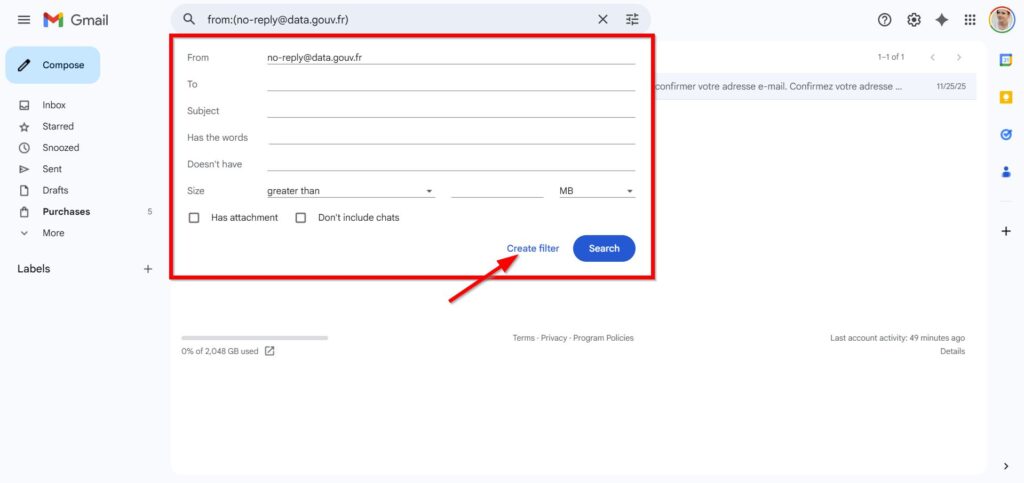
- Review the details
- Click Create filter
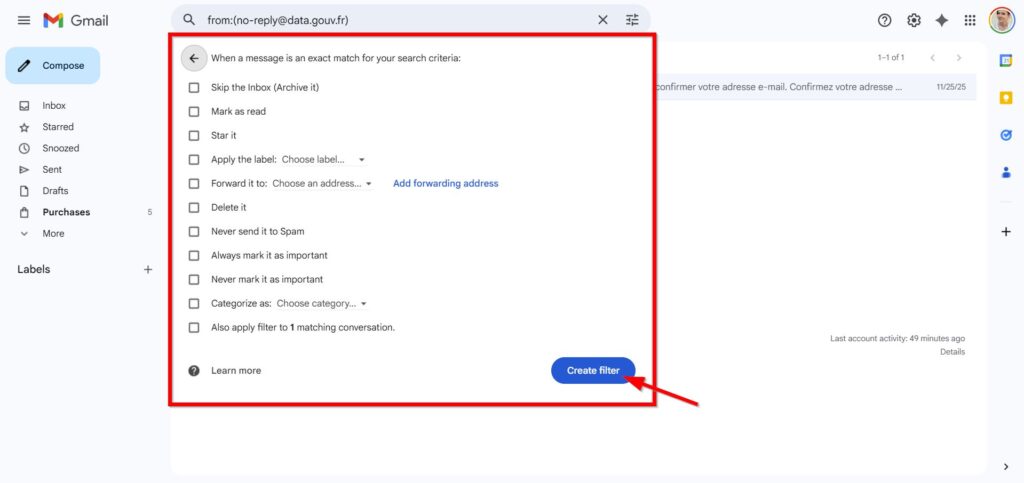
- Choose an action
- Click Create filter again
Gmail will now treat similar emails the same way.
Spam emails can be annoying and time-consuming, but you don’t have to live with them. Gmail gives you easy tools to block senders, create filters, and control how your emails are handled.
By using these features and following good email habits, you can greatly reduce unwanted messages. Spend a few minutes setting things up, and you will enjoy a cleaner, more organized inbox every day.
- How to Make Professional Infographics Using AI for Free
Making good-looking infographics used to be hard. You needed design skills and expensive software. Now, with AI, anyone can create..
- How to Make Gemini Image without Watermark
These days, making images with AI is very easy. You don’t need to be good at design or use expensive..
- Buat Foto Nailong di Gemini AI, Gampang!
Fenomena karakter Nailong kini tidak hanya populer di dunia animasi, tetapi juga menginspirasi banyak orang untuk membuat foto bergaya lucu..