
Making good-looking infographics used to be hard. You needed design skills and expensive software. Now, with AI, anyone can create professional infographics for free. You don’t need to be a designer or tech expert. Just follow a few simple steps.
Infographics are great for sharing information, doing school work, creating social media posts, or making presentations. With the help of AI and Google Gemini, you can turn your ideas into clean and attractive visuals in minutes. This guide will show you how to do it in an easy way.
Step-by-Step Guide to Create Infographics Using AI
Follow these simple steps to start making your own infographics.
Step 1: Use the Prompt Generator Tool
First, open your browser and go to this link: Infographic Prompt by Tehcnolati
This website provides a tool that helps you create special prompts for making infographics with AI. A prompt is a set of instructions that tells the AI what kind of image you want.
Step 2: Wait to Be Redirected to Gemini Gem
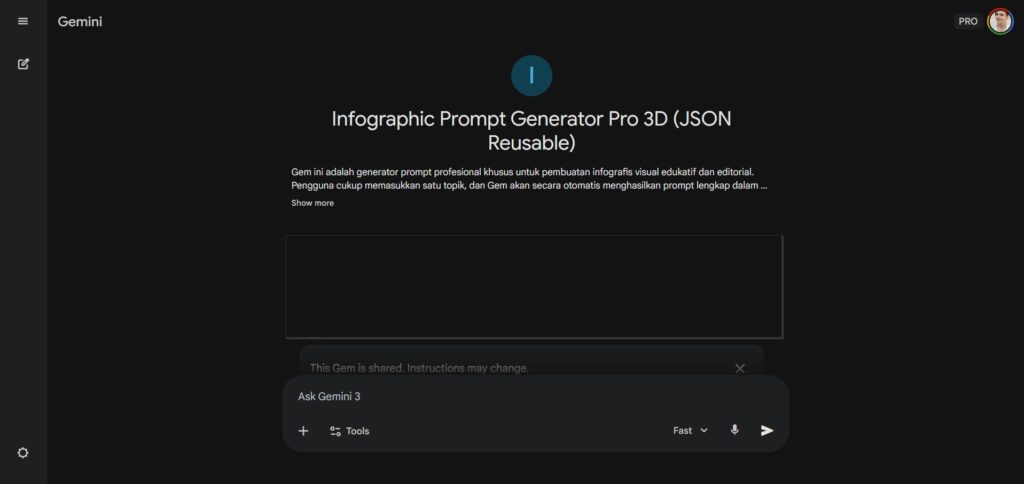
After buying the tools and getting the link, wait for a moment.
You will be redirected to a custom Gemini Gem. This tool is connected to Google Gemini and helps you prepare better prompts. Make sure you are logged in with your Google account before continuing.
Step 3: Enter Your Topic and Style
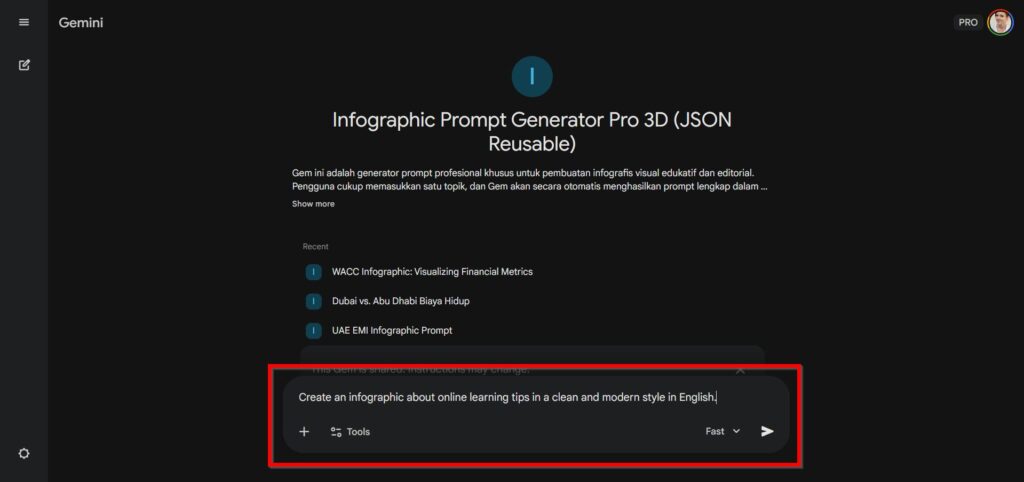
Now, type in what you want your infographic to be about.
You can enter:
- Your topic (for example: “Benefits of Drinking Water”)
- Your preferred style (simple, modern, colorful, professional, etc.)
- Your language (English, Indonesian, or others)
Example:
“Create an infographic about online learning tips in a clean and modern style in English.”
Try to be clear and simple. This helps the AI understand you better.
Step 4: Generate and Copy the Prompt
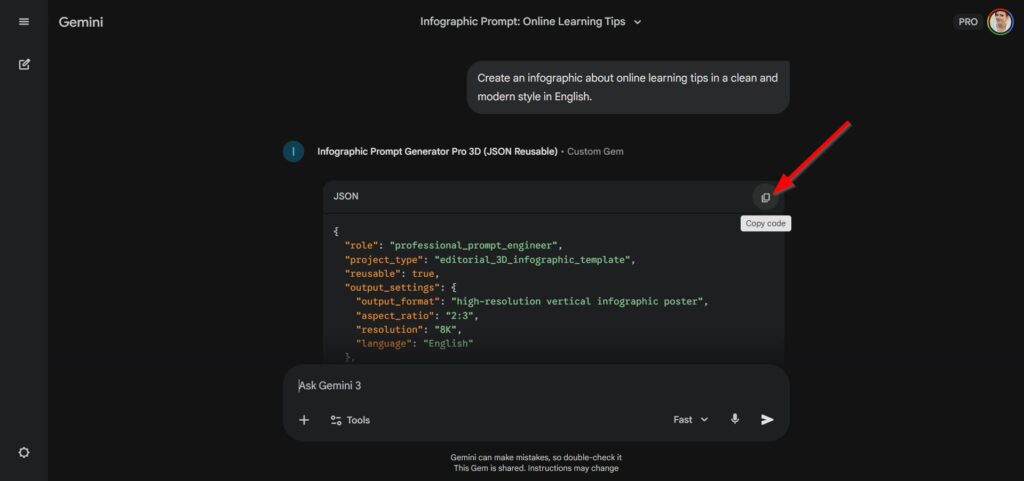
After entering your details, click the generate button.
Wait a few seconds for the AI to create a full prompt. When the prompt appears, click “Copy” to save it. You will use this in the next step.
Step 5: Open Google Gemini in a New Tab
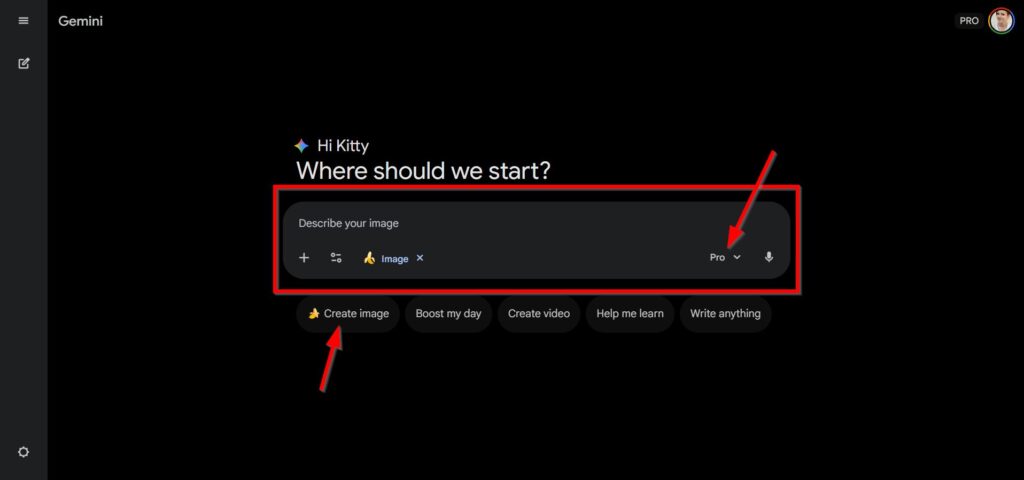
Next, open Google Gemini and start a new chat.
Choose the option to create images and select “Gemini 3 Pro” or any available free image model. This feature allows you to turn text into images.
Step 6: Paste the Prompt and Generate the Infographic
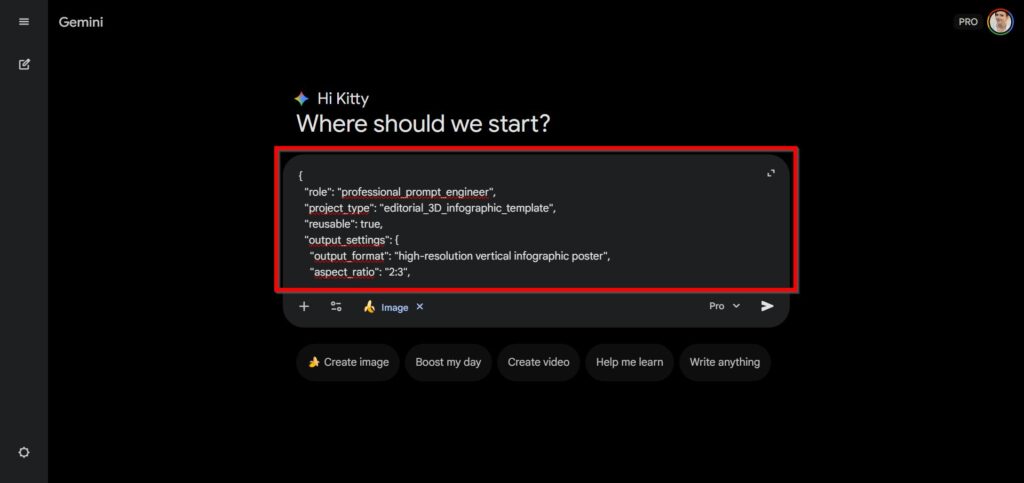
Paste the copied prompt into the chat box. Then press Enter or click Generate.
Wait a few moments while the AI creates your infographic. It will arrange text, icons, and colors into a neat design.
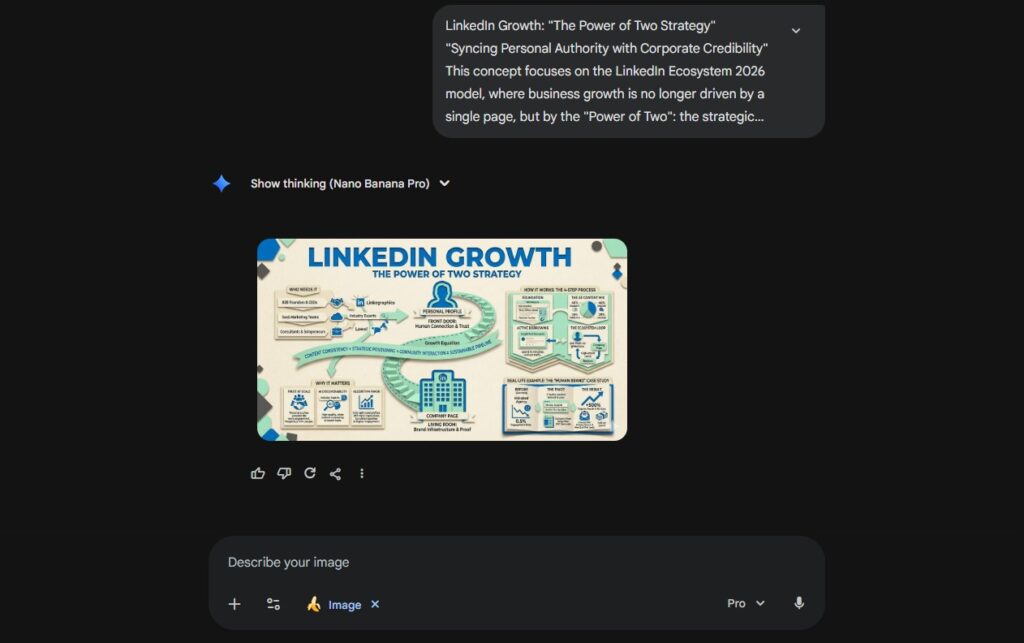
Step 7: Check and Download Your Design
When the image is ready, look at it carefully. If you like it, click Download and save it to your device.
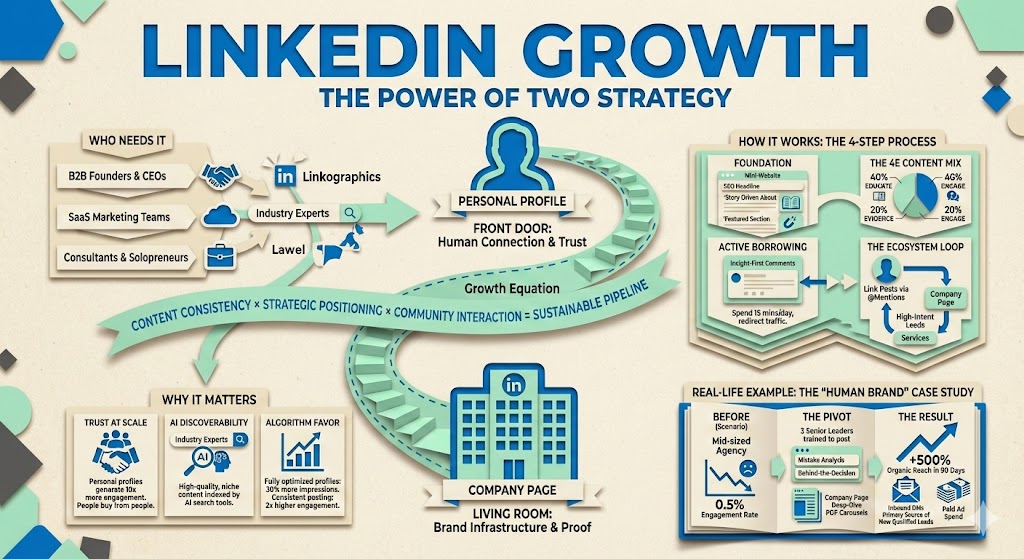
If it’s not what you expected, you can change the prompt and try again. You can repeat this until you get the best result.
Making professional infographics is now easy and free with AI tools and Google Gemini. You don’t need special skills, just a good idea and a little practice. Try this method today and start creating clean, attractive infographics for your projects, work, or social media.
- How to Use Google Antigravity as an Agent-First AI IDE for Coding
Google has recently released Antigravity. This is an agent-first development platform for modern developers. It uses the familiar VS Code..
- Gridline: A Free Bloomberg Alternative for OSINT
Gridline is a self-hosted risk dashboard for traders, analysts, and OSINT work. It pulls conflict, finance, and news signals into..
- Nvidia Build Their Own Version of Openclaw
Nvidia is quietly preparing to launch a major new platform for AI agents, and it could change how businesses use..
- Facebook Acquire Moltbook, AI-Only Social Platform
Meta, the company behind Facebook and Instagram, has made a move that sounds like something straight out of a science..
- Top 5 OpenClaw AI Agent Alternatives You Can Deploy for Free
Openclaw has been getting a lot of attention lately, but nearly half a million lines of code and 70-plus dependencies..
- How to Install OpenClaw on a Local VPS Without Subscription Fees
If you want your own private AI assistant running on your own server, not on someone else’s platform, OpenClaw might..